I test the AI image, video and editing tools flooding your feed, then show you exactly how to use the ones that actually work. No hype, no fluff, just workflows you can steal today.
Worked with Google●Meta●Samsung●Adobe●TikTok●X●DJI●Worked with Google●Meta●Samsung●Adobe●TikTok●X●DJI●
Hero portrait here (4:5, yellow accent lighting would be perfect)
Why this exists
Creators don't need more AI hype. They need a shortcut.
I'm Seb. Ten years deep in social media, now fully focused on one thing: figuring out which AI tools are worth your time, and showing over a million creators how to use them.
Brands like Google, Meta, Samsung and Adobe bring me in when they want their AI products explained to real creators. You get the same breakdowns, free, every week.
When an AI tool is actually worth your time, you'll hear it from me first. What it does, what it costs and how to use it in your content this week.
Videos
Every breakdown, one place.
Latest uploads land here automatically. Below that, the greatest hits: the videos worth starting with.
On the feed
Latest videos
The reviews happen on the channel — hands-on tests, comparisons, and breakdowns of the AI tools covered on this site. This page updates automatically as new videos land.
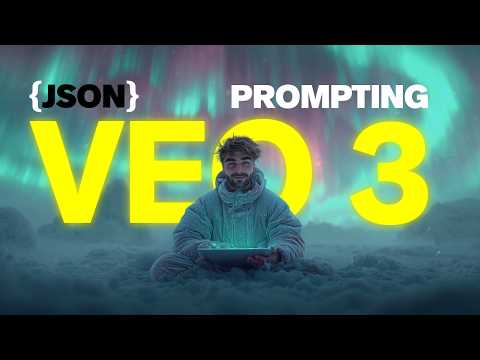
How To Use Google Veo 3 Like A Pro: JSON Prompting Explained
If you've scrolled past one of those ads lately that looks like a $100,000 production, an Apple Watch glowing under studio lighting, a Tesla gliding through a showroom, a Dior bottle drifting through a haze of flower petals, there's a good chance it wasn't filmed at all. It was generated with Google Veo 3, and the people making them aren't using fancy camera rigs or VFX teams. They're using one tool and one prompt, written in a very specific format: JSON.
I broke down exactly how this works in the video above, and I'm putting the workflow in writing here so you can come back to it whenever you're ready to build your own.
Why JSON prompting beats normal text prompts
You can absolutely type a plain English prompt into Veo 3 and get a decent result. But side by side, JSON-structured prompts consistently look more cinematic, more controlled, and closer to an actual ad. The reason comes down to how the model reads your instructions.
A normal prompt is just a wall of text: "add this, also do that, but don't do this, and make sure the lighting is..." The model has to parse all of that fluff and guess at priority. A JSON prompt instead breaks your scene down into clearly labeled fields, things like camera, subject, action, environment, lighting, and audio, so the model reads it more like a set of instructions than a paragraph. Less ambiguity in, better video out.
The workflow: building JSON prompts in seconds
You don't need to learn JSON syntax by hand. Here's the exact process I use:
Set up a project in ChatGPT (or a Gem in Gemini). Add custom instructions telling it to act as a Veo 3 JSON prompt generator, then upload a handful of example JSON prompts as project files for it to reference.
Describe what you want in plain English. Something like "create a JSON prompt for a Tesla ad" or "I want a bottle of shampoo to start hovering in a bathroom." If you've got a product photo, attach it and ask the model to build the scene around it.
Copy the generated JSON prompt. The project will spit out a fully structured prompt with the camera angle, subject, action, environment, lighting and dialogue/audio all defined for you.
Head to flow.google to access Veo 3. This is Google's dedicated video creation interface, click "Create with Flow," start a new project, and paste in your JSON prompt.
Pick the right model setting. Use Veo 3 Fast if you want to conserve credits (20 credits per generation, 720p, audio included). Use the Quality setting with "beta audio" enabled if you want the highest fidelity output.
Generate, then upscale. Hit generate and let it run. If you used Fast mode and want higher resolution, download the clip and upscale it to 1080p (or 4K with a third-party upscaler).
Getting Veo 3 access for free
Veo 3 through Flow is a paid feature, but there's a workaround: search for the Google AI Pro plan and check the subscription page. Google has been running a free 1-month trial of AI Pro that includes access to Flow and Veo 3, with a generous monthly credit allowance. That's more than enough to test the workflow above and generate your first batch of ad-style clips before deciding whether to pay.
Tools used in this workflow
Google Veo 3 (via flow.google) — the video generation model itself
ChatGPT or Gemini (Projects/Gems) — for turning plain-English ideas into structured JSON prompts
Google AI Pro — the easiest way to get free trial access to Flow and Veo 3
Where to go from here
JSON prompting is the difference between "AI video that looks like AI video" and "AI video that looks like a real ad." Once you've got the structure down, the only limit is how creative you get with the scene description, swap in your own products, your own brand colors, your own voiceover script, and you've got an ad library that would normally cost thousands per video.
Want the templates?
Get my exact JSON prompt library and project setup
Inside AI Creator Lab I share the ready-to-use JSON prompt templates, the ChatGPT project files, and the full breakdown of how SebIntel uses this exact workflow every week.
How To Create AI Videos That Actually Look Like You
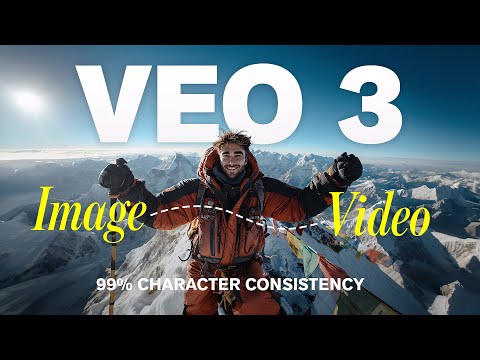
One of the questions I get asked the most is some version of: "How do you film so much content?" The honest answer is, increasingly, I don't. A growing chunk of what shows up on my channels is generated using an AI version of me, trained on real footage, that can speak, move and react just like I would on camera.
This isn't a gimmick or a novelty filter. It's the same underlying tech I use to run SebIntel, my fully AI-generated channel. Here's the workflow for building a digital version of yourself that's actually convincing.
Step 1: Capture your source footage
Every AI avatar tool needs reference material to learn from, your face, your voice, your mannerisms. The better the source footage, the better the clone. You want:
A few minutes of clean, well-lit video of you talking to camera, ideally in different angles and expressions
A clear audio sample of your voice, at least a couple of minutes, free from background noise
Consistent lighting across your clips, this matters more than most people expect for how realistic the final output looks
Step 2: Build your AI character
Once you've got source footage, you feed it into a character/avatar generation tool. These tools analyze your photos and video to learn your unique look, then let you generate "infinite" new scenes of yourself, different locations, outfits and poses, without filming any of it.
This is the same category of tool used for the "make your own character" workflows you've probably seen creators use to generate themselves in completely different settings: a photographer in Paris one minute, on a couch at home the next, all from a handful of source images.
Step 3: Clone your voice
Run your clean audio sample through a voice cloning tool. Most modern voice AI tools only need a couple of minutes of audio to produce a convincing clone that you can then use to generate any script, in your own voice, without recording a single new line.
Step 4: Script, generate, and assemble
With your AI character and AI voice ready, the rest of the workflow looks like this:
Write or generate a script for the video, just like you would for a normal piece of content
Generate your avatar performing the script using your character model and cloned voice
Edit and polish the output, adding b-roll, captions, music and transitions like you would with any other video
The end result is a video that looks and sounds like you, performing a script you may never have actually said out loud, filmed in a location you've never been to.
Why this matters for creators
This isn't about replacing yourself, it's about removing the bottleneck. Filming is the slowest, most logistically annoying part of content creation: lighting, setup, retakes, locations. An AI version of you removes all of that, so the only thing left between you and a finished video is the script.
Tools used in this workflow
AI character/avatar generators — for building a consistent AI version of yourself from photos and video
AI voice cloning tools — for generating new lines in your own voice from a short sample
A standard editing tool — for assembling the final video (see the AI editing tools article for what I recommend)
Want the full pipeline?
See exactly how SebIntel runs on this workflow
Inside AI Creator Lab I break down the exact tools, settings and prompts behind my AI clone, plus the scripting and publishing pipeline that runs SebIntel on autopilot.
AI video generation gets all the attention, but generation is only half the job. The clips you create with Veo, Kling or your AI avatar still need to be cut, captioned, cleaned up and turned into something postable. That's where AI editing tools come in, and most creators are sleeping on how good they've gotten.
Here's the editing stack I actually rely on, broken down by what each tool is for.
1. AI captioning and auto-editing
If you only add one AI tool to your editing process, make it an auto-captioning tool. The best ones don't just transcribe your audio, they auto-detect silences and dead space and let you cut them out by deleting text, turning a rough cut into a tight, fast-paced edit in minutes instead of hours.
2. AI upscaling and restoration
If you're generating clips at 720p (which is common with faster, cheaper generation modes), an AI upscaler is non-negotiable. These tools use AI to intelligently add detail when scaling footage up to 1080p or 4K, so your AI-generated clips hold up next to traditionally filmed footage.
3. AI b-roll and clip generation
For talking-head content, AI b-roll generators let you describe a shot ("close-up of hands typing on a laptop, warm lighting") and generate a matching clip to cut away to, instead of digging through stock footage libraries that never quite match your vibe.
4. Voice cleanup and enhancement
AI audio tools can strip background noise, balance levels and even fix muffled or low-quality audio recordings automatically. If your footage has rough audio, run it through one of these before you do anything else, it makes a bigger difference to perceived quality than almost any visual edit.
5. Repurposing and clipping
If you're turning long-form videos (like YouTube uploads) into shorts, an AI clipping tool can scan a full video, identify the most engaging moments, and auto-generate vertical clips with captions ready to post. This is how creators turn one long video into 5-10 pieces of short-form content without manually scrubbing through footage.
How these fit together
My actual workflow looks like this: generate or film raw footage → clean up audio → auto-edit and caption the rough cut → upscale if needed → generate any extra b-roll → repurpose the long-form video into shorts. Each step is a separate AI tool, but together they cut my editing time down dramatically compared to doing all of this manually.
The bottom line
You don't need every tool in this list on day one. Start with auto-captioning, since it has the single biggest impact on watch time and editing speed, then add the others as your output increases and the manual work starts to pile up.
Want my exact stack?
See the specific tools, settings and subscriptions I use
Inside AI Creator Lab I share my full editing stack with direct links, discount codes (up to 60% off), and walkthroughs of how each tool fits into a real publishing workflow.
To add: member testimonials and results. Even 2 or 3 quotes will lift conversion significantly.
SebIntel
My AI clone runs an entire channel.
SebIntel is a fully automated AI avatar of me, creating educational AI content on its own. Same face, same voice, zero filming.
Why I built it
The best way to prove AI content works isn't to talk about it. It's to build a channel where every video is AI-generated, then let the results speak.
SebIntel posts educational AI content built on an automated pipeline: scripting, avatar generation, voice, editing and publishing. I oversee it. I don't film it.
The full system, every tool and every step, is taught inside AI Creator Lab.
To add: brand logos row, case studies or campaign results, and a media kit download. Bookmarked for the next pass.
About
Hi, I'm Seb.
Content creator, AI educator and the person brands call when they need AI explained to real creators.
About page portrait here
I've spent 10 years in social media marketing, specialising in Instagram, copywriting and organic growth. These days I focus on one mission: cutting through AI hype so creators can actually use this stuff.
Over 1 million people follow my breakdowns across Instagram, TikTok, YouTube, LinkedIn and X. I've partnered with Google, Meta, Samsung, Adobe, TikTok and DJI, and I run AI Creator Lab, the community where I teach everything in depth.
Based in Richmond, UK. Powered by SJ Productions Ltd and two cats with strong opinions.